Ag Peer Comparison System Administration Settings
Use the following procedures to manage the ability of users to access Ag Peer Comparison, and the ability of users and system administrators to use specific functionality in the feature. All procedures start from the Lending Cloud menu on the Locator page.
To set institution-level defaults for categories associated with calculations
Use the Calculation Preferences page to choose defaults for the Region, Industry, and Segment categories for your institution. These categories are used to determine the data that will be calculated for Ag Peer Comparison.
Note Moody's recommends that you establish the Calculation Preferences settings before your institution uses Ag Peer Comparison. If the Ag Peer Comparison setup on specific customer records has been saved already, some of the settings might not match what you selected for the institution-level defaults. In such cases, when users select Ag Peer Comparison in the customer record, a warning message describing the conflicting values will appear. Users will be unable to save changes and exit until they update the customer-level settings to align with the institution-level settings.
1. Select Defaults > Peer Comparison > Setup.
2. Click the Calculation Preferences tab.
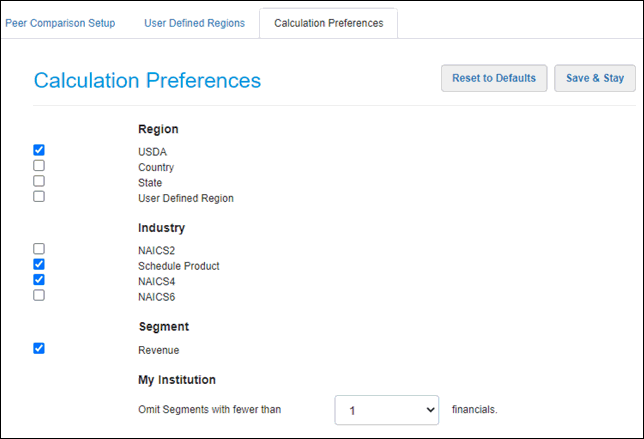
3. Select the check box for each option under Region, Industry, and Segment that will be available to users on the Peer Comparison Setup page.
-
Region
-
USDA - Use the USDA region of the borrower or another USDA region for peer comparison.
-
Country - Use the country of the borrower or another country for peer comparison.
-
State - Use the state of the borrower or another state for peer comparison.
-
User Defined Region - Use a region established by your institution. For information about creating and assigning user defined regions, see To set up user defined regions.
-
-
Industry
-
NAICS2 - Use producers classified under the first two digits of an NAICS code for peer comparisons.
-
Schedule Product - Use a sub group option for peer comparisons.
-
NAICS4 - Use producers classified under the first four digits of an NAICS code for peer comparisons.
-
NAICS6 - Use producers classified under the first six digits of an NAICS code for peer comparisons.
-
-
Segment
-
Revenue - Use a gross revenue range to filter peers for comparisons.
-
Under My Institution, the Omit Segments with fewer than  financials field can be used only when your institution's data is the sole data used for peer comparison. The value My Institution in the Data Comparison field drop-down list on the Peer Comparison Setup page indicates that only your institution's data is used.
Use the drop-down list to select the minimum number of financial statements required in a revenue segment in your portfolio before the segment can be used for peer comparison. Valid values are 1-20. This option enables you to exclude segments that contain too few financials to make a meaningful comparison. For example, if a revenue segment has only two financial statements, comparing the borrower against the segment might not provide a meaningful comparison because not enough data exists to produce a solid benchmark.
Note Moody's initially sets the value in the drop-down list to 1.
When you change the value in the Omit Segments with fewer than financials field, the next nightly calculation excludes "My Institution" calculations for a revenue segment when the segment has fewer financials than the number selected. Also, when users are in a borrower record, the financial statement minimum also applies to on-demand calculations performed for that borrower.
4. Click the Save & Stay button.
Note To change the settings of all fields on the Calculation Preferences page back to the original default values, click the Reset to Defaults button.
To provide users with access to Ag Peer Comparison
1. Select Defaults > System Administration > Functionality Groups > Select Functionality Group > Customer Menu / Page Access > Peer Comparison.
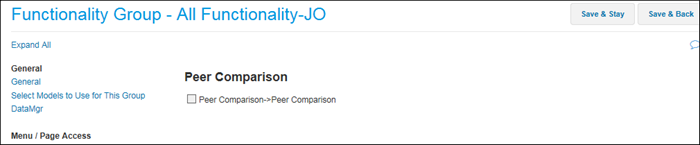
2. Select the check box for the Peer Comparison -> Peer Comparison field.
3. Click the Save & Stay or the Save & Back button.
To provide users with access to Ag Peer Comparison Reports
1. Select Defaults > System Administration > Functionality Groups > Select Functionality Group > Customer Menu / Page Access > Reports.
2. From the Reports menu, scroll down to the Reports->Peer Comparison field.

3. Select the check box for the Reports->Peer Comparison field.
4. Click the Save & Stay or the Save & Back button.
To establish default settings for the use of peer data
The Peer Comparison Setup page enables system administrators to create default settings for the use of peer data for comparisons and benchmarking.
1. Select Defaults > Peer Comparison > Setup.
2. From the Peer Comparison Setup page, select the appropriate options for the following fields:
Note To change the settings of all fields on the Peer Comparison Setup page back to the original default values, click the Reset to Defaults button in the upper-right corner of the page.
-
Section
-
ALL - Select this option to use all years of available information for data points in comparisons with all peer groups.
-
3 Year - Select this option to use three years of information for data points in comparisons with all peer groups.
-
5 Year - Select this option to use five years of information for data points in comparisons with all peer groups.
-
7 Year - Select this option to use seven years of information for data points in comparisons with all peer groups.
-
10 Year - Select this option to use ten years of information for data points in comparisons with all peer groups.
-
The following fields apply to each peer group:
-
Enable
-
Select the Enable check box to use the peer group for comparisons and benchmarking.
-
-
Comparison Data
-
My Institution - Select this option to use peer data from your Lending Cloud portfolio for peer comparisons.
-
All Institutions - Select this option to use peer data from outside as well as from inside your Lending Cloud portfolio for peer comparisons. This option is available only if your institution uses the licensed feature that incorporates Moody's Ag peer data from outside of your Lending Cloud portfolio for peer comparisons.
-
-
Region
-
ALL - Select this option to use the USDA region of the borrower for peer comparisons.
-
USDA - Select this option to use the USDA region of the borrower or another USDA region for peer comparisons.
When you select this option, the Sub Region field appears under the Region field. -
Country - Select this option to use the country of the borrower or another country for peer comparisons.
When you select this option, the Sub Region field appears under the Region field.
This option is available only if you select All Institutions from the Comparison Data drop-down list. The All Institutions option indicates you are using the licensed feature that incorporates Moody's Ag peer data from outside your Lending Cloud portfolio for peer comparisons. -
State - Select this option to use the state of the borrower or another state for peer comparisons.
When you select this option, the Sub Region field appears under the Region field.
This option is available only if you select All Institutions from the Comparison Data drop-down list. The All Institutions option indicates you are using the licensed feature that incorporates Moody's Ag peer data from outside your Lending Cloud portfolio for peer comparisons -
User Defined Region - Select this option to use a region established by your institution. For information about creating and assigning user defined regions, see To set up user defined regions.
This option is available only if you select My Institution from the Comparison Data drop-down list.
-
-
Sub Region
When you select USDA from the Region drop-down list, the following options are displayed in the Sub Region drop-down list:
-
-
AutoMatch - Select this option to use the USDA region of the borrower for peer comparisons.
-
East
-
West
-
Midwest
-
Northern Plains
-
South Central
-
South East
-
Select the appropriate option from the six USDA regions listed above to use for peer comparisons. If you select one of the USDA regions, the system uses data
from that region for peer comparisons, regardless of the borrower's USDA region.
When you select Country from the Region drop-down list, the following options are displayed in the Sub Region drop-down list:
Note This option is available only when you select All Institutions from the Comparison Data drop-down list.
-
-
AutoMatch - Select this option to use data from the country of the borrower for peer comparisons.
-
CAN - Select this option to use Canadian data for peer comparisons, regardless of the borrower's country.
-
USA - Select this option to use United States data for peer comparisons, regardless of the borrower's country.
-
When you select State from the Region drop-down list, the following options are displayed in the Sub Region drop-down list:
Note This option is available only when you select All Institutions from the Comparison Data drop-down list.
-
-
AutoMatch - Select this option to use data from the state of the borrower for peer comparisons.
-
Two-digit abbreviations for each of the 50 United States, the District of Columbia, and Puerto Rico
Select the appropriate option to use for peer comparisons, regardless of the borrower's state or territory.
-
When you select User Defined Region from the Region drop-down list, regions established by your institution are displayed in the Sub Region drop-down list. For information about creating and assigning user defined regions, see To set up user defined regions.
Note This option is available only when you select My Institution from the Comparison Data drop-down list.
-
Industry
-
ALL - Select this option to use the North American Industry Classification System (NAICS) code of the borrower for peer comparisons.
-
NAICS2 - Select this option to use producers classified under the first two digits of an NAICS code for peer comparisons.
When you select this option, the Industry Sub Group field appears under the Industry field. -
NAICS4 - Select this option to use producers classified under the first four digits of an NAICS code for peer comparisons.
When you select this option, the Industry Sub Group field appears under the Industry field. -
NAICS6 - Select this option to use producers classified under all six digits of an NAICS code for peer comparisons.
When you select this option, the Industry Sub Group field appears under the Industry field. -
Schedule Product - Select this option to use a selected sub group for peer comparisons.
When you select this option, the Industry Sub Group field appears under the Industry field.
-
-
Industry Sub Group
When you select NAICS2 from the Industry drop-down list, the following options are displayed in the Industry Sub Group drop-down list:
-
-
AutoMatch - Select this option to use the North American Industry Classification System (NAICS) code of the borrower for peer comparisons.
-
The first two digits of NAICS codes and the corresponding industries - Select the appropriate option to use for peer comparisons.
-
When you select NAICS4 from the Industry drop-down list, the following options are displayed in the Industry Sub Group drop-down list:
-
-
AutoMatch - Select this option to use the North American Industry Classification System (NAICS) code of the borrower for peer comparisons.
-
The first four digits of NAICS codes and the corresponding industries - Select the appropriate option to use for peer comparisons.
-
When you select NAICS6 from the Industry drop-down list, the following options are displayed in the Industry Sub Group drop-down list:
-
-
AutoMatch - Select this option to use the North American Industry Classification System (NAICS) code of the borrower for peer comparisons.
-
All six digits of NAICS codes and the corresponding industries - Select the appropriate option to use for peer comparisons.
-
When you select Schedule Product from the Industry drop-down list, the following options are displayed in the Industry Sub Group drop-down list:
-
-
AutoMatch - Select this option to use the North American Industry Classification System (NAICS) code of the borrower for peer comparisons.
-
Ag
-
Crop
-
Livestock
-
LivestockProduct
-
Mixed
-
Select the appropriate option from the five categories listed above to use for peer comparisons.
-
Segment
-
ALL - No filter
-
Revenue - Select this option to choose a gross revenue range to filter peers for comparisons. When you select this option, the Segment Sub Group field appears below the Segment field.
-
-
Segment Sub Group
When you select Revenue from the Segment drop-down list, the following category options are displayed in the Segment Sub Group drop-down list:
-
-
AutoMatch - The system will use the customer's revenue from the most recent financials (including projections) to determine which revenue group is selected.
For example, if the customer has revenue of $750K this year, $600K last year, and $450K the year before, then the system will select $500K-<$1MM for comparison. -
<$100K
-
$100K-<$500K
-
$500K-<$1MM
-
$1MM-<$2MM
-
$2MM-<$5MM
-
$5MM-<$10MM
-
>=$10MM
-
Other - Use peers, regardless of revenue range, for comparisons.
-
-
Peer Name
When you select Auto from the Peer Name drop-down list, data related to the following fields for the corresponding peer group identify the peer group:
-
-
Comparison Data - Your setting in this field is used in the name of the peer group.
-
Industry/Industry Sub Group (Product) - Your selection to indicate the product is used in the name of the peer group.
-
Region/Region Sub Region (Region) - Your selection to indicate the region is used in the name of the peer group.
-
Segment/Segment Sub Group (Revenue) - Your selection to indicate the gross revenue is used in the name of the peer group.
-
For example, My Institution:, Prod=111150, Reg=West, Rev=$100K-$500K
When you select Simple from the Peer Name drop-down list, the heading for the corresponding peer group fields (For example, Peer Group 1) identifies the peer group.
When you select Manual from the Peer Name drop-down list, the system enables you to create a name that you define to identify the peer group. When you select this option, a
field appears below the Peer Name field. Enter your name for the peer group in the field.
3. Click the Save & Stay button to save your changes.
Note To change the settings of all fields on the Peer Comparison Setup page back to the original default values, click the Reset to Defaults button in the upper-right corner of the page.
To set up user defined regions
System administrators can create and maintain up to 10 user defined regions (UDRs) for peer comparisons. UDRs are made up of only your institution's data and are defined by the locations that they contain. Specific locations can be applied to multiple regions and specific regions can be excluded from all regions. UDRs have no impact on Moody's data. Users need no extra security or permissions to use UDRs.
Note Your default settings associated with the use of UDRs might invalidate setup selections for specific customers. If customer-level peer comparison setup selections are no longer valid, users must modify the customer-level settings to align with the new default settings.
1. Select Defaults>Peer Comparison>Setup. The Setup page appears.
2. At the top of the Setup page, click User Defined Regions. The User Defined Regions tab appears.
3. In the empty field at the top of the User Defined Regions table, enter the name of your new UDR. For example, Midwest Region. Moody's recommends that the first eight characters of the name provide a meaningful description of the region. This is because users can view only the first eight characters of the name in the key that appears in printed Ag Peer Comparison reports. For more information about the appearance of UDR names over eight characters in printed reports, see Example of Truncated UDR Name.
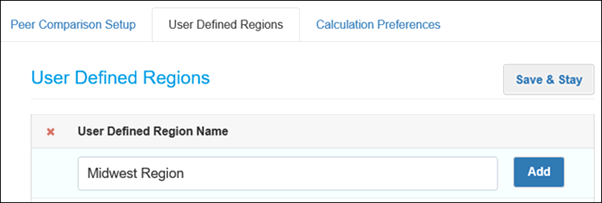
4. After entering the name of the UDR, click the Add button. The system adds your new region to the table.
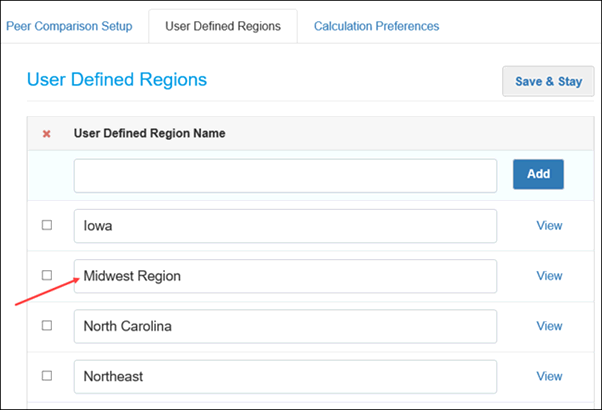
5. Click the Save & Stay button.
6. Click the View link to the right of the region name. The Locations page appears. The available locations are listed in hierarchical order.
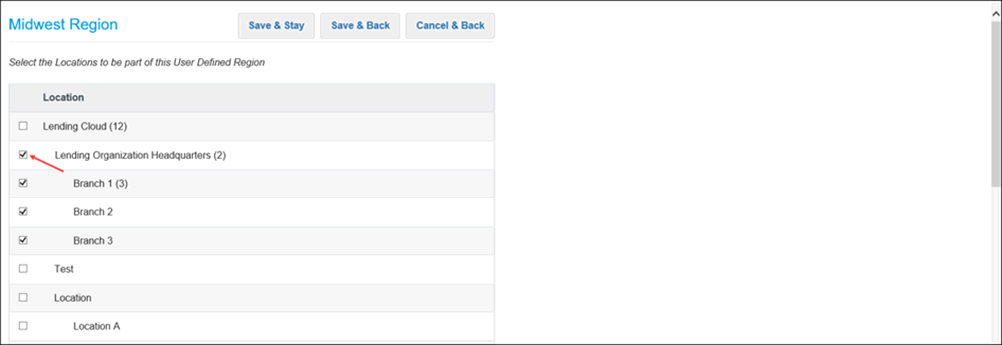
7. Select the check boxes for the locations that define the region. Selecting the check box for the parent level of a hierarchy automatically selects the check box for all child locations that belong to the parent, as shown in the following example.
Clearing the check box for a child location automatically clears the check box for the parent because all child locations no longer apply to the region. See the following example.
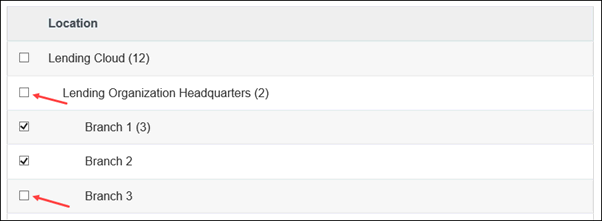
In addition, if you select all child location check boxes that were cleared previously, the check box for the parent is selected automatically.
8. After selecting all appropriate locations for the region, click the Save & Stay button to remain on the Locations page or click the Save & Back button to return to the Setup page.
9. If needed, set up and save more regions following the procedures described in Steps 3-8. You can maintain a maximum of 10 UDRs.
10. After establishing all UDRs, click the Save & Back button to return to the Setup page.
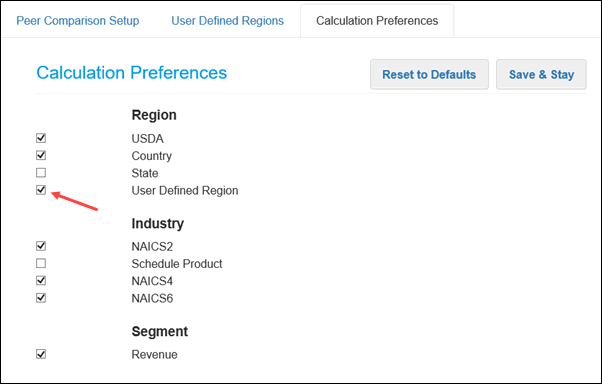
11. At the top of the Setup page, select Calculation Preferences. The Calculation Preferences tab appears. In the Region category, select the check box for User Defined Region to make the calculation for UDRs available for users.
12. Click the Save & Stay button to retain your calculation preferences.
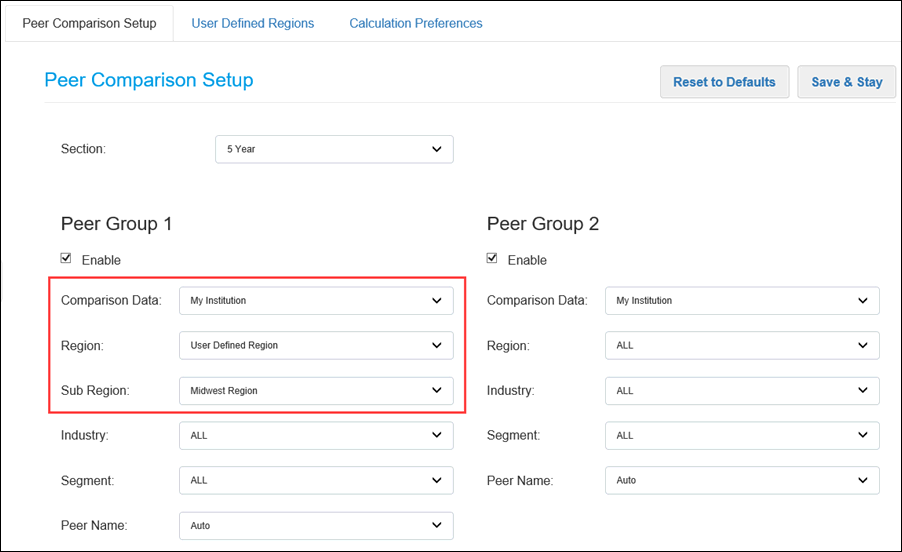
13. Click Peer Comparison Setup. The Peer Comparison Setup tab appears. To apply a UDR, make the following selections.
- From the Comparison Data drop-down list, select My Institution. If you select All Institutions, the system deactivates the use of UDRs since those regions are made up of only your financial institution's data.
- From the Region drop-down list, select User Defined Region. The Sub Region field appears and displays -Select-.
- From the Sub Region drop-down list, select the name of the appropriate UDR. For example, Midwest Region. If you do not select a UDR name, the system prevents you from saving the peer comparison setup.
See the following example of the settings for the Comparison Data, Region, and Sub Region fields.
14. After completing the appropriate setup for all peer groups, click the Save & Stay button.
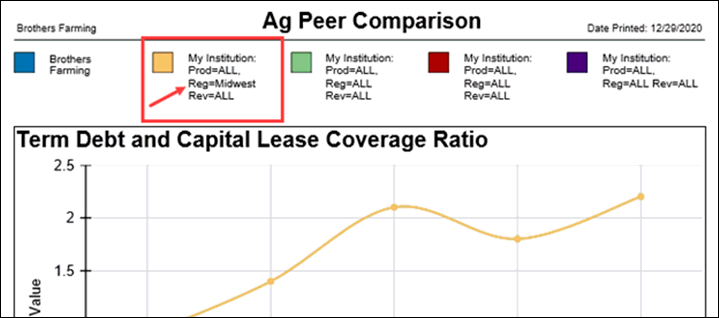
Following is a portion of a printed Active Graphs report to demonstrate the importance of making the first eight characters of a UDR name meaningful to users. In the key at the top of the report, region information for the first peer contains Midwest followed by a space. The characters are the first eight from the UDR name Midwest Region. The shortened name provides users with assistance in correctly identifying the region.
To provide administrators with access to the Setup page
The Setup page enables system administrators to establish parameters for peers across your entire site at the default level.
1. Select Defaults > System Administration > Functionality Groups > Select Functionality Group > Locator Menu / Page Access > Defaults.
2. From the Defaults menu, scroll down to the Defaults->Peer Comparison->Setup field.

3. Select the check box for the Defaults->Peer Comparison->Setup field.
4. Click the Save & Stay or the Save & Back button.
To provide administrators with access to the Graph Default page
The Graph Default page enables system administrators to determine which graphs are active, and the placement of graphs on the screen across your entire site at the default level.
1. Select Defaults > System Administration > Functionality Groups > Select Functionality Group > Locator Menu / Page Access > Defaults.
2. From the Defaults menu, scroll down to the Defaults->Peer Comparison->Graphs Default field.

3. Select the check box for the Defaults->Peer Comparison->Graphs Default field.
4. Click the Save & Stay or the Save & Back button.