User Last Login Report
The User Last Login Report provides information about the most recent login for your users at the time the report is generated.
Note Information about providing access to this report appears in the Managing Access to the User Last Login Report section.
Accessing the User Last Login Report
Take the following path from the Lending Cloud menu on the Locator page to access the page that contains options for generating the report:
Defaults > System Administration > User Access Reports > User Last Login Report
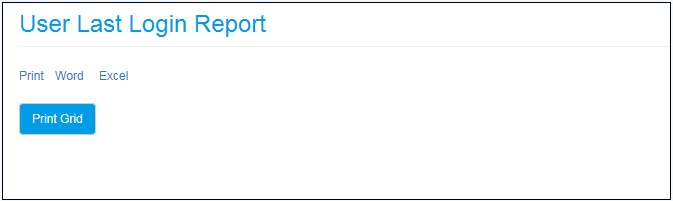
Use one of the following options to access the current User Last Login
Report:
1. Click the Print Grid button to display the report on the User Last Login Report page.
2. Click the Print link to open the report in Standard Report Viewer format.
3. Click the Word link to open or save the report in a Word document.
4. Click the Excel link to open or save the report in an Excel spreadsheet.
User Last Login Report Example
The following illustration provides an example of the User Last Login Report:
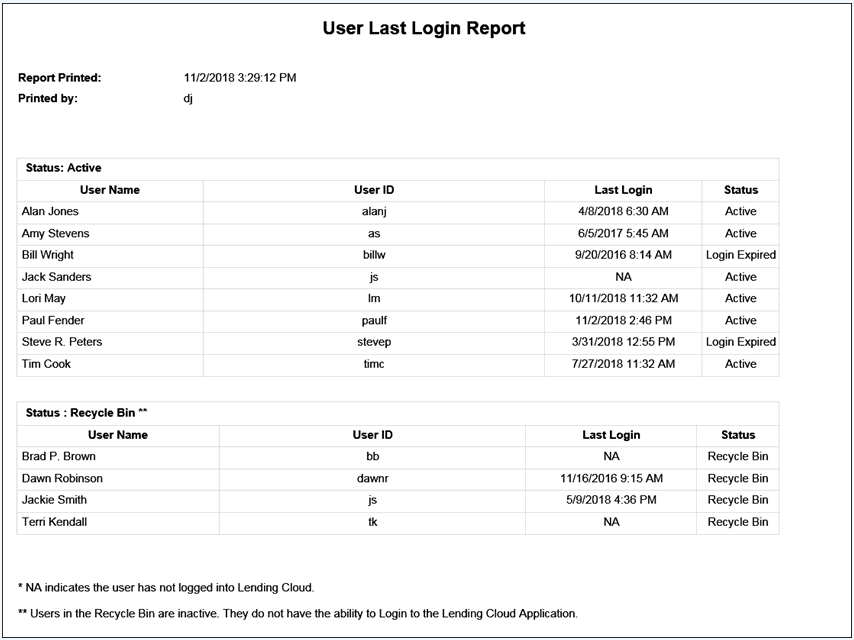
The User Last Login Report displays the date (Month/Day/Year) and time (Hour/Minute/Second/AM or PM) that the report was printed. It also displays the Lending Cloud User ID of the user who printed the report. The report contains two sections. The Active section is followed by the Recycle Bin section.
Note More information about the Active and Recycle Bin sections appears after the descriptions of the report fields.
Both sections contain the following fields:
- User Name
This field displays the name of the user in First/Middle/Last name order. Names appear in alphabetical order.
- User ID
This field displays the Lending Cloud User ID for the user.
- Last Login
The date (Month/Day/Year) and time (Hour/Minute/AM or PM) the user last logged in. If NA appears in this field, the user has not logged into Lending Cloud.
- Status
In the Active section, one of the following values can appear in the Status field:
- Active
The user record is active and the user is able to log in.
- Login Expired
The user record is active but the user is unable to log in because the login period has expired.
In the Recycle Bin section,
the value Recycle Bin appears in the Status field. This value indicates
that the user record has been placed in
the Recycle Bin and is not active.
Following are descriptions of the Active and Recycle Bin sections:
Active
This section contains information for users with an active record in User Management who are authorized to log in to Lending Cloud. For these users, Active appears in the Status field.
When a new user record is established in Lending Cloud, the Login Start Time and Date and the Login End Time and Date in User Management both match the time and date the record is first saved, unless a system administrator over-writes the values. The identical login start time/date and login end time/date indicate that the user record is active and the login period has no end. The following illustration provides an example of the login start and end information for these users:
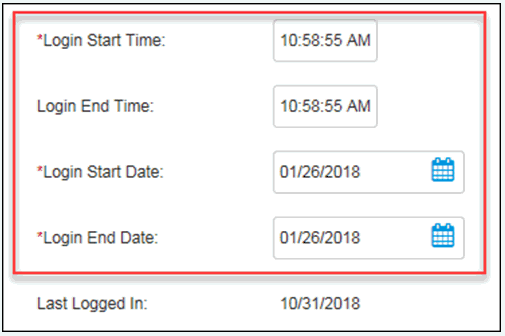
To prevent users with an unending login period from logging in, the system
administrator must change the Login End Time and Date to limit the login
period, or send the record to the Recycle Bin.
The Active section also contains information for users with an active record who can no longer log in. The current date and time is past the login end date and time set by the system administrator. For these users, Login Expired appears in the Status field.
User Management enables system administrators to assign a login end time and date anytime without sending a user record to the Recycle Bin. After the login end time and date passes, the user can no longer log in but the record remains active. Setting a log in end time and date is typically done for users who have a limited login period, such as interns or temporary employees.
Recycle Bin
This section contains login information for users whose records were placed in the Recycle Bin. The records are not active and the system prevents users from logging in to Lending Cloud. For these users, Recycle Bin appears in the Status field.
Placing user records in the Recycle Bin enables you to deactivate users while still maintaining audit integrity for activity they completed when active. Lending Cloud is still able to report on the last login for users that have been deactivated in this manner.