Income/Expense
Income Schedule | Rents Received | Vacancy Report
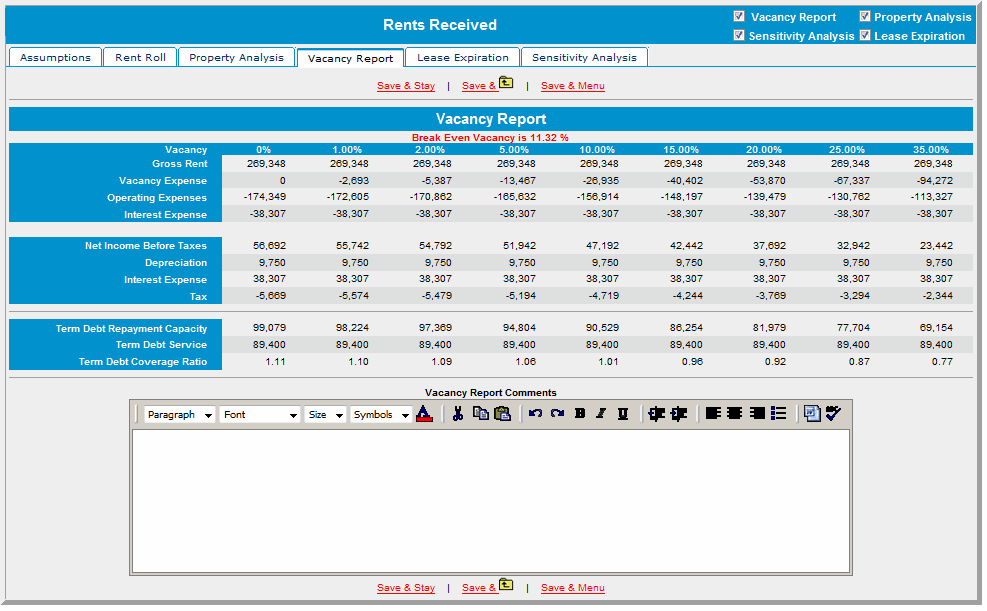
Four Vacancy Report options are available. To set up these options, you must define the criteria within the Rents Received Chart of Accounts screen.
Vacancy Report Screen
To open the Rents Received screen, click Inc/Exp, point to Chart of Accounts, and click the Rents Received link on the model.


Below is the Rents Received setup screen. The Vacancy Report section is at the bottom of this screen. You can select the following options:
| Fixed Expenses with Taxes/ Occupancy | Variable Expense with Taxes / Occupancy |
| Fixed Expenses with Taxes/ no Occupancy | Variable Expense with Taxes / no Occupancy |
| Fixed Expenses with No Taxes / Occupancy | Variable Expense with no Taxes / Occupancy |
| Fixed Expenses with No Taxes / no Occupancy | Variable Expense with no Taxes / no Occupancy |
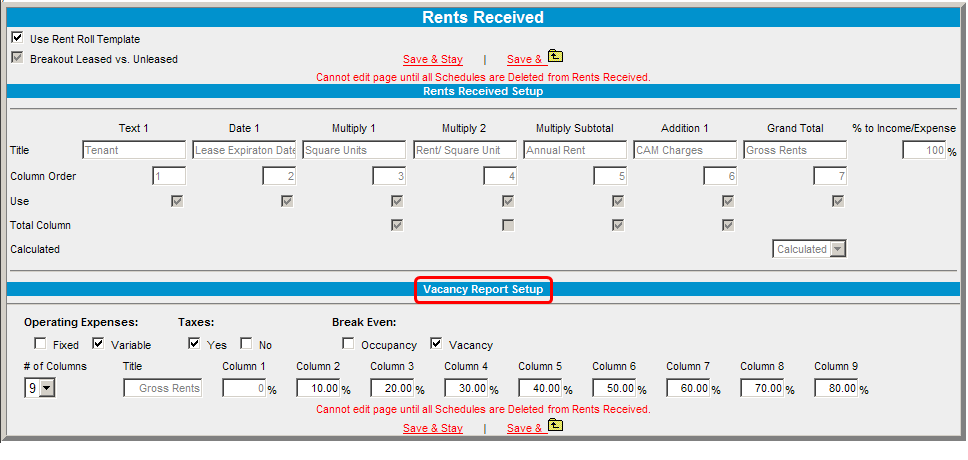
On Income/Expense | Actual Income | Rents Received screen the users will have a check box to select whether or not they want to see a vacancy report. On Income/Expense |Projected Income | Rents Received screen the users will have a check box to select whether or not they want to see a vacancy report.

Operating Expense total is entered as a positive amount.
Gross Rent – Vacancy Expense (Gross Rent * Vacancy %) – Operating Expenses = Net Income.
Net Income – Depreciation = Net Operating Income.
Net Operating Income / Term Debt Service = Term Debt Coverage Ratio.
(Operating Expenses – Depreciation + Term Debt Service) / Gross Rent = Break-Even Occupancy.
Rents Received Vacancy Report Setup screen after you enter your rents received vacancy data and select options in the upper right corner.